 PrintSnip
PRINTSNIP GUIDE
Arrange your photos into a collage
A collage combines several photos into one composition. PrintSnip’s Quick Edits workspace includes collage layouts, spacing and per-photo placement controls. Prepare a social image, a memory collage or a composition for printing.
Open tool — sign in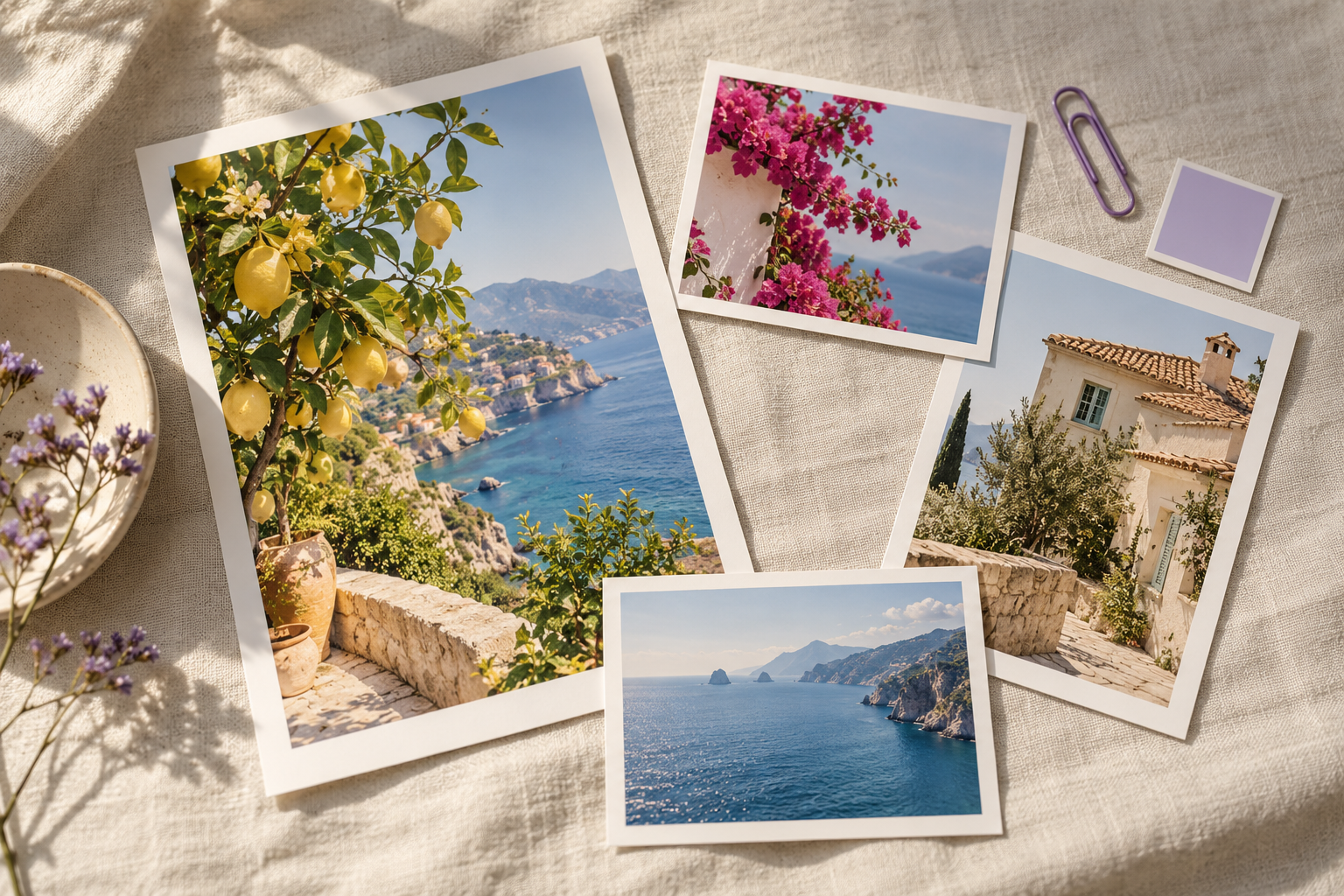
How to use it
- Open Quick Edits and choose the Collage tab. Add the photos you want to arrange.
- Choose a layout and output size. Adjust gaps and the background to suit your photos.
- Review each image. Use the placement and fit controls to keep the whole photo or crop deliberately; reposition important faces away from edges.
- Export the collage and check the saved image. For a physical photo sheet with exact print dimensions, use Photo Studio.
What to check before saving
- A filled slot may crop a photo when its shape differs from the slot. Choose a fit option or adjust placement when heads or feet are cut off.
- Very large collages can exceed phone memory. Use fewer images or a smaller output if the browser reports a limit.
- A collage export combines photos into one image; keep originals if you want to rearrange them later.
Privacy and saving
Supported photo and document edits are processed on your device. Account and service information uses the server. Print-shop sharing uses temporary encrypted server storage. Storage and sharing behaviour depend on the feature you choose; read the Privacy Notice before sharing sensitive files.
Common questions
How do I avoid cutting off a face?
Review the fit and position for each photo before export. Keeping the whole image can leave space inside a slot.
Is a collage the same as a print sheet?
No. A print sheet uses physical photo sizes and paper dimensions. A collage is a single composition.